
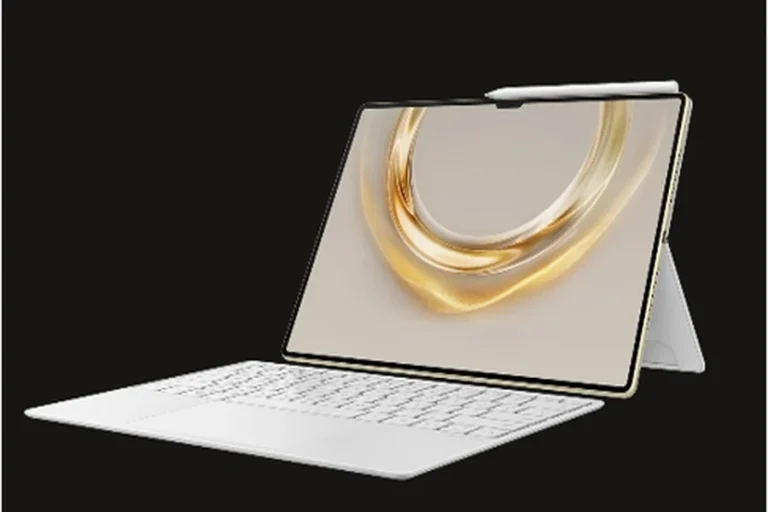
Tablets have evolved far beyond media consumption devices—they now offer serious productivity potential. Many professionals, students, and casual users find that with the right setup, a tablet can handle most daily computing tasks while being lighter and more portable than a laptop. Whether you’re a student taking notes, a freelancer working remotely, or a business professional managing emails on the go, a well-equipped tablet can serve as a practical laptop alternative. In this article, we’ll explore how to maximize your tablet’s potential, the must-have tools for laptop-like functionality, and when you might still need a traditional computer.
What Are the Essential Hardware Accessories for Laptop-Like Functionality?
Keyboard Cases vs. Bluetooth Keyboards: Which to Choose?
A physical keyboard is the most crucial accessory for turning a tablet into a productivity machine. Keyboard cases offer a built-in, travel-friendly solution that protects the screen while providing a typing experience similar to a laptop. They’re ideal for users who frequently work in cafes, libraries, or during commutes since they keep everything in one piece. However, some keyboard cases can add bulk, and their key travel may feel shallow compared to full-sized keyboards. On the other hand, Bluetooth keyboards provide more flexibility—you can choose ergonomic models with better key spacing or even mechanical keyboards for extended typing sessions. They’re great for home or office setups where portability is less critical. For example, a writer who spends hours drafting documents might prefer a standalone keyboard for comfort, while a student taking lecture notes may prioritize the convenience of an all-in-one keyboard case.
The Importance of a Precision Stylus for Productivity
A stylus transforms a tablet into a digital notebook, making it invaluable for note-taking, sketching, and precise editing. Unlike fingers, a pressure-sensitive stylus allows for natural handwriting, detailed drawings, and accurate selections—especially useful for annotating PDFs or marking up presentations. Some styluses even support tilt and palm rejection, mimicking the feel of real pen and paper. For instance, an architect can sketch floor plans directly on the tablet, while a student can highlight textbook passages without printing them. Professionals who review contracts or design graphics also benefit from the precision of a stylus, as it eliminates the need for printing and scanning documents.
Docking Stations for Desktop-Style Multitasking
Docking stations expand a tablet’s capabilities by adding USB ports, HDMI output, and even Ethernet connectivity. This setup is perfect for users who need a desktop-like experience—connecting an external monitor, keyboard, and mouse turns the tablet into a workstation. For example, a financial analyst can work on spreadsheets on a larger screen while referencing data on the tablet display. A remote worker might use a docking station to connect to a full-sized monitor for video calls while keeping the tablet charged. Docking stations bridge the gap between portability and productivity, making tablets viable for office environments.
What Are the Must-Have Software and Apps for Full Productivity?
The right apps determine whether a tablet can truly replace a laptop. Cloud-based office suites (word processors, spreadsheets, and presentation tools) ensure files sync seamlessly across devices. Note-taking apps with stylus support make handwritten notes searchable, while project management tools help organize tasks efficiently. For instance, a marketer can edit social media content using photo and video editing apps, while a teacher can grade assignments digitally with ztools. Cross-platform apps that work on both tablets and desktops prevent workflow disruptions when switching devices.
How Can You Improve Connectivity for Seamless Work?
Many tablets now support external monitors, either via USB-C or wireless casting. This feature is a game-changer for multitasking—imagine dragging a spreadsheet to a larger screen while keeping reference materials on the tablet. Some operating systems even allow multiple app windows to run side by side, mimicking a desktop experience. And a USB-C hub adds ports for flash drives, SD cards, and wired peripherals—essential for photographers transferring images or presenters connecting to projectors. Look for hubs with HDMI, USB-A, and charging passthrough for maximum versatility.
What Are the Limitations of Using a Tablet as a Laptop Replacement?
Heavy video editing, advanced coding, or running specialized software (like CAD tools) often demands more power than tablets provide. Likewise, professionals who rely on multiple large spreadsheets or complex databases may find tablets limiting. For users who need both portability and power, detachable or convertible devices offer a middle ground—tablet flexibility with laptop performance when docked.
Conclusion
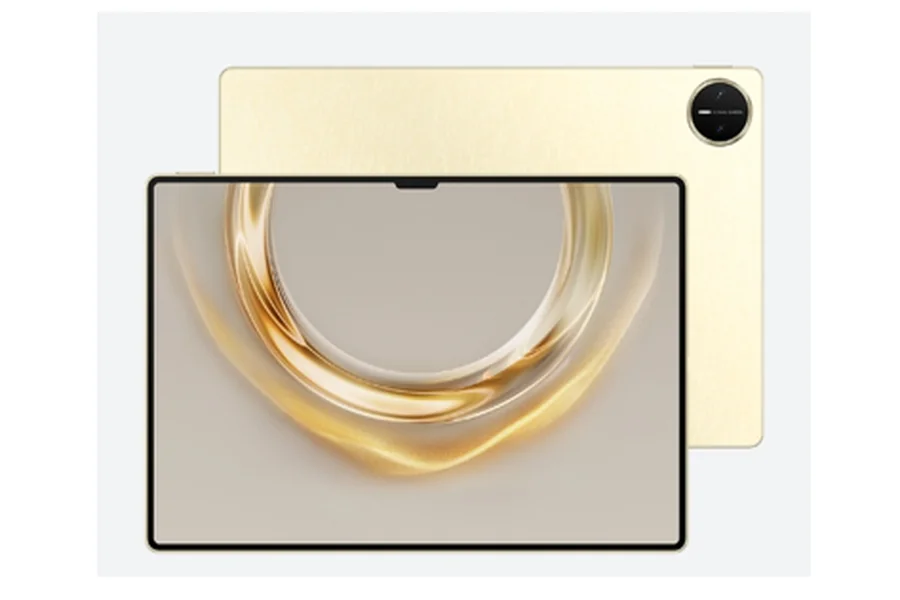
With the right setup, a tablet can replace a laptop for many users, offering portability without sacrificing productivity. However, it’s important to assess your specific needs before fully transitioning. HUAWEI is a leading innovator in high-performance tablets, and the HUAWEI Store hk offers a variety of models designed for professional use. Whether you need a lightweight travel companion or a versatile workstation, there’s a tablet solution to fit your workflow.

- Fermented Cod Liver Oil: Unveiling the Benefits of a Nutritional Powerhouse - October 9, 2026
- 7 Lawn Care Hacks Every Homeowner Needs - June 8, 2026
- Can I Get The Best Dosa In Indiranagar Delivered To My Office By 9 AM? - June 5, 2026